
Stage 2 of 4
Route every document through a named, audited approval chain
Sequential approval with role-based routing, optional fixed approvers, and complete traceability.
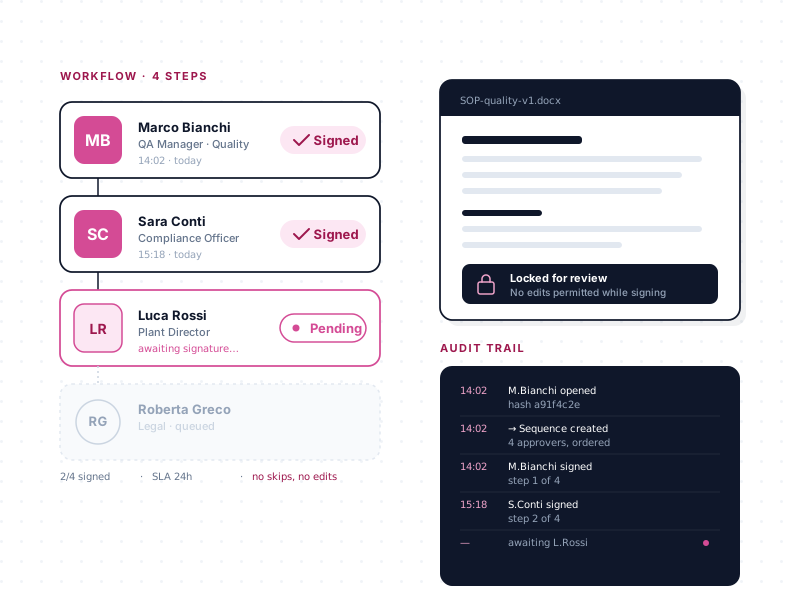
Approval is where document management either earns its keep or reveals its weakness. Every regulated organization — and every well-run unregulated one — eventually needs to prove, to an auditor or a regulator or an internal stakeholder, exactly who approved what, against which version, when, and on what grounds. Email chains cannot answer that question reliably. Paper signatures cannot either. A defensible approval workflow can, and it's the central feature of docs365.ai.
The archetypal failure — and why it keeps happening
Somewhere in every company, right now, there is an important document that has been waiting three weeks for a missing signature. The CEO is asking about it. The sales team needs it. Nobody can say with certainty which desk it's stuck on, or which version is the canonical one. The finance director approved a version three weeks ago, but legal made changes after that, and nobody is sure whether those changes require re-approval or not.
This is not a people problem. It is a process problem, and the process has a cheap technical answer: run every approval through a named, audited, sequential chain that is visible to everyone and logged for posterity.
Launching an approval
Approvals are started directly from the document itself. From the library's context menu, the author clicks Publish / Self-Approval, opens the approver-selection dialog, and configures the flow.
For each approver, the author picks:
- The person. Chosen from Microsoft 365 users in the tenant — looked up by name or email, not typed manually. External guests can be included if the site is configured to allow guest sharing.
- The role. Approver, reviewer, editor, auditor, supervisor — or any custom role the organization defines. Roles are meaningful both for the approver (they see their role in the request email) and for the audit log (evidence captures "approved as Quality Manager" not just "approved").
- The order. Approvers are listed top-to-bottom in the order they will be contacted.
The author can add an email subject, a free-text note to the approvers, and any document-specific context before launching the flow.
Sequential, not parallel
This is the important architectural decision. docs365.ai runs approvals sequentially — the next approver is notified only when the previous approver signs off. If the first approver rejects, the downstream approvers are never contacted and the document comes back to the author.
Why sequential? Because audit evidence is cleaner when the chain of approvals is ordered. If the Quality Manager signs off, and then Regulatory Affairs reviews the document specifically on the strength of the Quality Manager's sign-off, that dependency is preserved in the audit trail. Parallel approval — where everyone is notified at once — collapses that dependency and makes the evidence harder to interpret later.
Fixed approvers per document type
For document types that always need the same sign-off — the Quality Manager on every SOP, the IT Director on every security policy, the CFO on every contract above a threshold — fixed approvers can be configured at the document-type level. When an author launches an approval flow on that document type, the fixed approvers are inserted automatically, either at the start of the chain (pre-flow) or at the end (post-flow). The author never forgets to add them because the author never adds them.
This is a critical difference from ad-hoc workflow tools. It turns "the Quality Manager always signs off on SOPs" from a policy somebody might forget into a default the system enforces.
Check-out during approval
The moment an approval flow is launched, the document is automatically checked out. Nobody can edit it until the flow completes (either all approvals received, or any approver rejects).
This matters because approval evidence must be tied to a specific version of the document. If an early approver signs off, and then someone modifies the document while later approvers are still reviewing, the early approval no longer applies to the version the document actually becomes. Check-out removes that risk. Approvers see the exact version they're signing off on.
What the approver experiences
Each approver receives an email when it's their turn. The email contains:
- The document name and protocol code.
- Key metadata (author, effective date, document type).
- A link that opens the document in read-only mode — so approvers review the actual file, not a summary.
- Clear approve / reject buttons.
- A field for comments.
Approvers don't need to log into anything special. The link opens the document in SharePoint — the same environment they already use. If they approve, the flow advances to the next person automatically. If they reject, the document comes back to the author with the reject comment, and the flow stops.
The audit log
Every approval, every rejection, every comment, every resubmission is written to the document's audit log. The log is accessible from the document's context menu — select the document, click the three-dot menu, pick Audit.
The audit log captures:
- Who approved or rejected.
- When, to the minute.
- Which version they were reviewing.
- What role they held.
- Any comments they left.
For ISO 9001 surveillance audits, this is the evidence an auditor looks for. For 21 CFR Part 11 customers, the audit log — tied to named Microsoft Entra users, immutable, version-specific — is the kind of capability they use in their Part 11 program with their own QA team owning validation. For HIPAA and GDPR, it's the record of who handled the document and when.
When approval hands off to DocuSign
For document types that require a legally binding signature — contracts, NDAs, regulatory submissions, HR agreements — the approval flow can hand off to DocuSign at the final step. When the last internal approver signs off, the document is routed to DocuSign for PAdES simple or PAdES advanced electronic signature. The signed PDF lands back in the library with the approval and signature history intact.
The DocuSign integration is available on Premium plans and above. It's a €2,150/year add-on on Business, Enterprise, and Diamond plans.
What about qualified electronic signature or CAdES?
We support PAdES simple and PAdES advanced e-signature via DocuSign. Qualified electronic signature — the SPID-style e-sig that requires identity-verified tokens — is not supported by the integration. CAdES (the .p7m envelope format commonly used for non-PDF artifacts) is not supported either. Customers who need qualified signatures or CAdES for specific documents typically maintain a parallel workflow for those documents.
A customer who relies on this
Bulgari's legal team authors contracts, NDAs, and corporate policies that the rest of the company needs to consume. Before docs365.ai, the "latest version" lived in email. Now it lives in one governed library with a clear approval chain, an audit trail, and DocuSign handling the signature step for documents that need binding execution.
Ready to see it?
Thirty minutes. No cost. No obligation. We'll walk through your current workflow and show where this stage would change it.