
Stage 3 of 4
Publish the approved version to one place everyone trusts
Word becomes PDF, the library becomes canonical, and the company sees the same document at the same time.
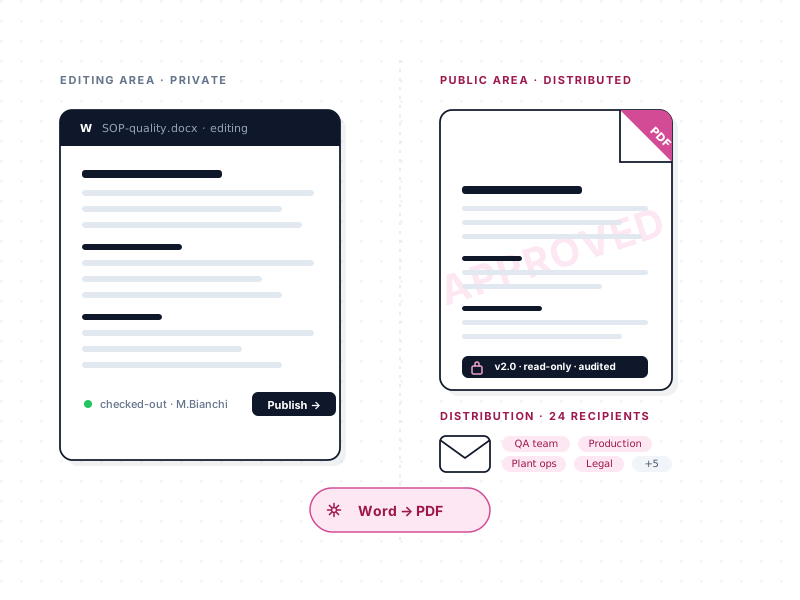
Publication is the stage where a document goes from "being worked on" to "in effect". It's also the stage where most organizations have the biggest gap. Approved documents sit in someone's email. Old versions stay visible alongside new ones. Different departments end up acting on different editions of the same policy. Publication should be the most trivial stage in the lifecycle, and in most companies it is the most chaotic.
In docs365.ai, publication is automatic and single-source.
What happens the moment the last approver signs off
When the final approver completes the approval flow, three things happen automatically, in order:
- The document is converted to PDF. Word documents specifically are converted; PowerPoint, Excel, and PDF source files are supported as document types but are published in their original format (see below).
- The document is moved to the public area of the library. This is a separate zone within the same library, visible to a broader audience than the editing zone — the editing zone is where the document was being drafted and approved, and the public zone is where end-users consume published documents.
- Metadata is updated. Publication date, approval status, and the approved version number become the values that end-users see.
Nobody has to remember to export, copy, upload, or re-share anything. The moment approval completes, the document is published.
Two zones, one library — the public and the editing area
Every Document Management area in the organization contains two zones:
- The editing area. Where document owners draft, co-author, and push documents through approval. Restricted by SharePoint permissions to the people who need to work on documents. End-users don't see this zone.
- The public area. Where the whole audience for that department — or the whole company, depending on configuration — consumes published documents. End-users see only the latest approved version of each document, with publication date and status visible. They don't see drafts, rejected versions, or in-flight approvals.
Technically, the editing area is configured as a sub-site of the public site. This is how the system is able to automatically move an approved document from draft to published without the user doing anything manual.
What publication looks like to an end user
An end user — someone who reads policies but doesn't author them — lands on the public area of a department's library. They see a clean list of document types (SOPs, work instructions, policies, manuals, whatever the department publishes) and within each type, the current approved PDFs. Each document shows:
- Title and protocol code.
- Status (Published / Archived).
- Publication date.
- Filterable metadata — language, category, applicable audience, whatever the customer configured.
They click the document. They see the PDF. They get the current, canonical version. They don't need to guess which version is the latest because there is only one.
File format support — what auto-converts, what doesn't
docs365.ai supports Word, PowerPoint, Excel, and PDF as native document types across every plan.
- Word. Auto-converted to PDF at publication. The canonical published version is the PDF; the Word source remains in the editing area for the next revision.
- PowerPoint. Published in PowerPoint format. A PDF of a slide deck is of limited value — recipients often need to edit or reuse the slides — so we keep the original format.
- Excel. Same principle. A PDF of a spreadsheet can't be filtered or sorted; recipients need the live file.
- PDF. Published as-is.
This is a deliberate design choice. Publishing formats in a way that matches how recipients use them matters more than a universal conversion policy.
Post-publication distribution options
Publication to the public area makes the document available. Distribution makes sure the people who need to know about it actually hear about it. Three distribution options, configurable per document type:
- Email a distribution list. The moment publication completes, an automatic email goes to a configured distribution list — the announcement contains the document name, protocol code, and a link to the published PDF. For organizations with many departments and a lot of cross-functional policy flow, this is the simplest reliable option.
- Request read-receipts. For documents where acknowledgment matters — a new smart-working policy, a revised SOP, a mandatory training memo — the sister read-receipts product in the intranet.ai family lets you request confirmation from specific users or groups, track who has read the document, and produce a report of compliance with the read requirement. Read-receipts is a separately purchasable product, included in the full-lifecycle bundle.
- Publish as a news item on the intranet. If the customer runs the intranet.ai portal, approved documents can surface as news cards directly on the intranet home page, carrying over tags and categorization. The DMS web part shows published documents inside the intranet without duplication — one source of truth, two consumption surfaces.
What publication prevents
- "Which version is in effect right now?" — the public area answers that question trivially, always.
- Two departments operating on different versions of the same policy — everyone sees the same PDF.
- Employees hunting through email for the last approved version — the library is the answer, not the inbox.
- "I didn't know that policy had been updated" — the distribution options address this directly.
What publication enables, downstream
Because publication is automatic, the Govern stage — audit log, versioning, expiration reminders, archive — has clean, reliable data to work with. The audit log knows exactly when each version was published. Versioning preserves every published state. Expiration reminders operate against a defined publication date. Archive moves the old version aside without losing it.
Ready to see it?
Thirty minutes. No cost. No obligation. We'll walk through your current workflow and show where this stage would change it.